This is a quick configuration guide for setting up a Tachyon Networks point-to-point bridge using any of the TNA series radios such as the TNA-303X, TNA-303L-65, TNA-301 and TNA-302.
Before starting we recommend upgrading your device to the latest firmware, downloads are available here:
https://tachyon-networks.freshdesk.com/support/solutions/articles/67000714399-tachyon-networks-firmwares
PTP Master
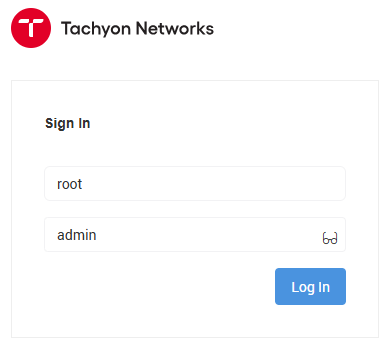
1. Log in to the first radio using the default IP address and credentials:
IP Address: DHCP-assigned, Fallback IP: 192.168.1.1
User: root
Password: admin
Note you will immediately be prompted to set a new password for security.
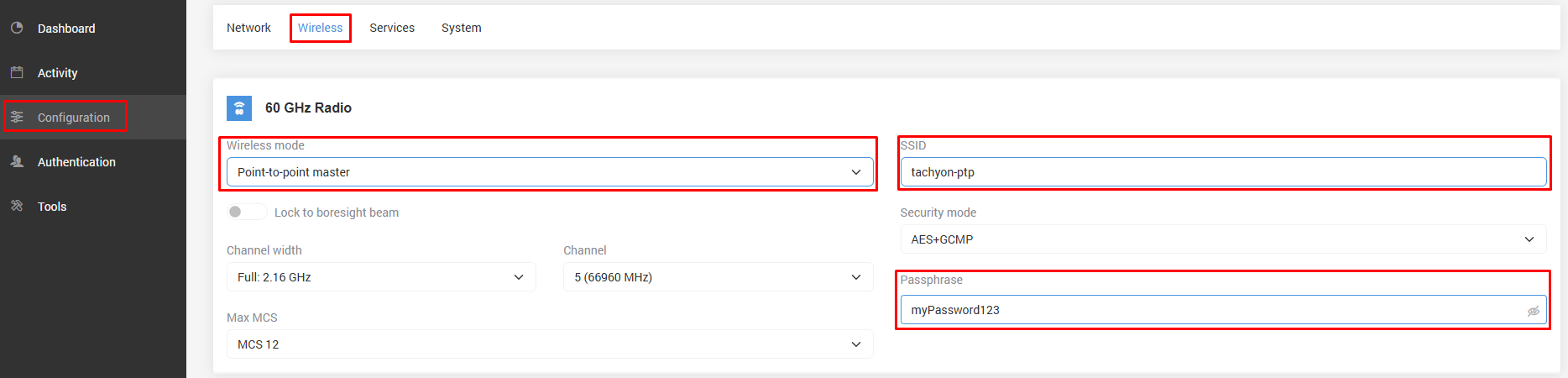
2. Go to Configuration -> Wireless and make the following changes:
Wireless mode: Point-to-point master
SSID: tachyon-ptp
Passphrase: myPassword123
Channel: 5 (66960 MHz), this is the default but Channel 5 or 6 would be recommended for longer distance links
Replace the SSID & Passphrase with your own unique identifiers for this bridge.
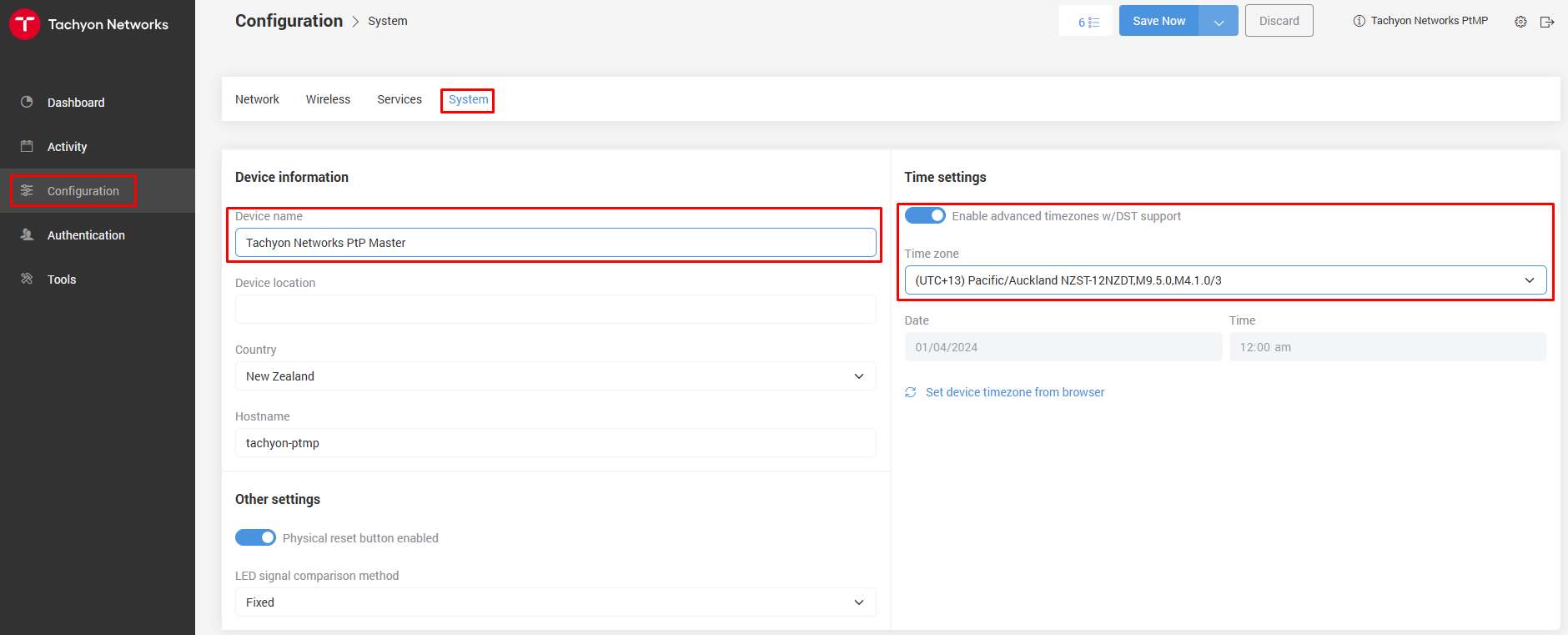
3. Next go to the System page and set a unique Device name to identify the Master radio, we would also recommend configuring the Time settings for accurate logging:
4. Click the Save Now button to apply all of the configuration changes that have been made.

This completes the Master setup and you can now move to the Slave.
PTP Slave
1. Log in to the second radio using the same defaults as the Master and set a new password for security.
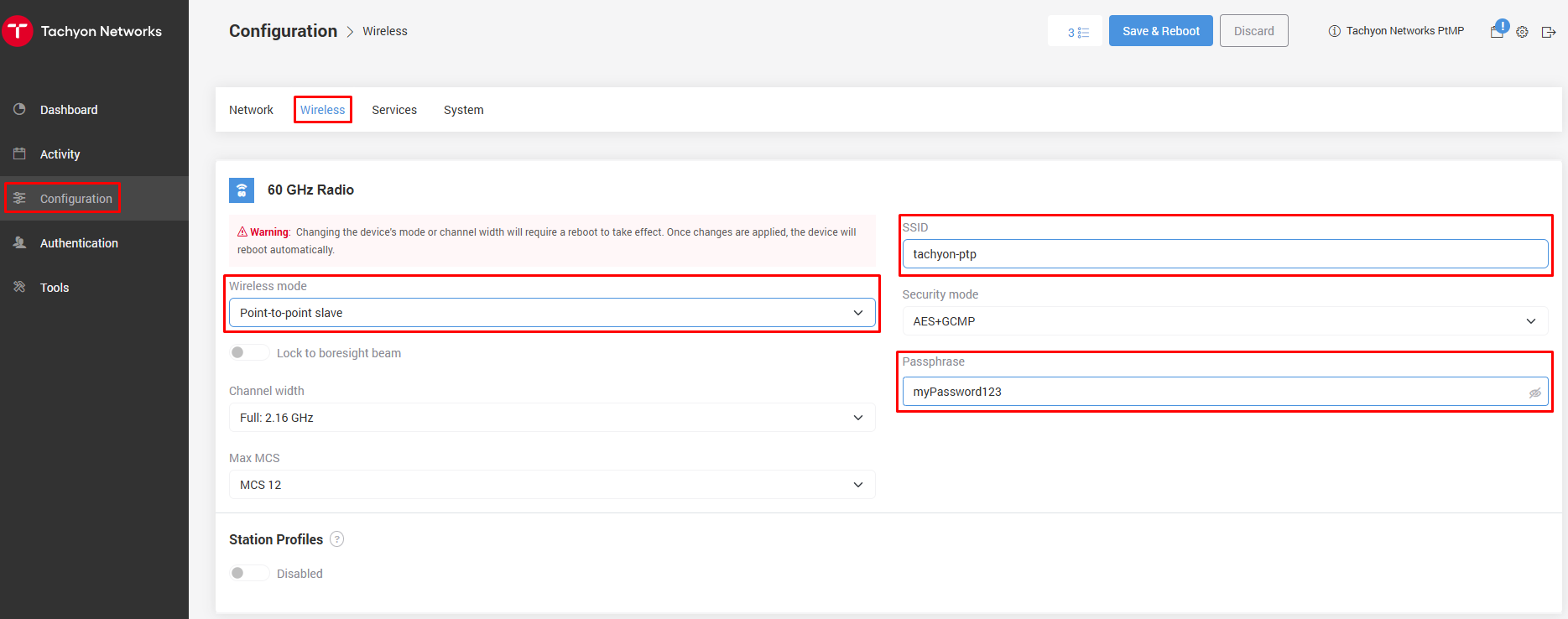
2. Go to Configuration -> Wireless and make the following changes:
Wireless mode: Point-to-point slave
SSID: tachyon-ptp
Passphrase: myPassword123
Be sure to match the SSID & Passphrase that were set on the Master.
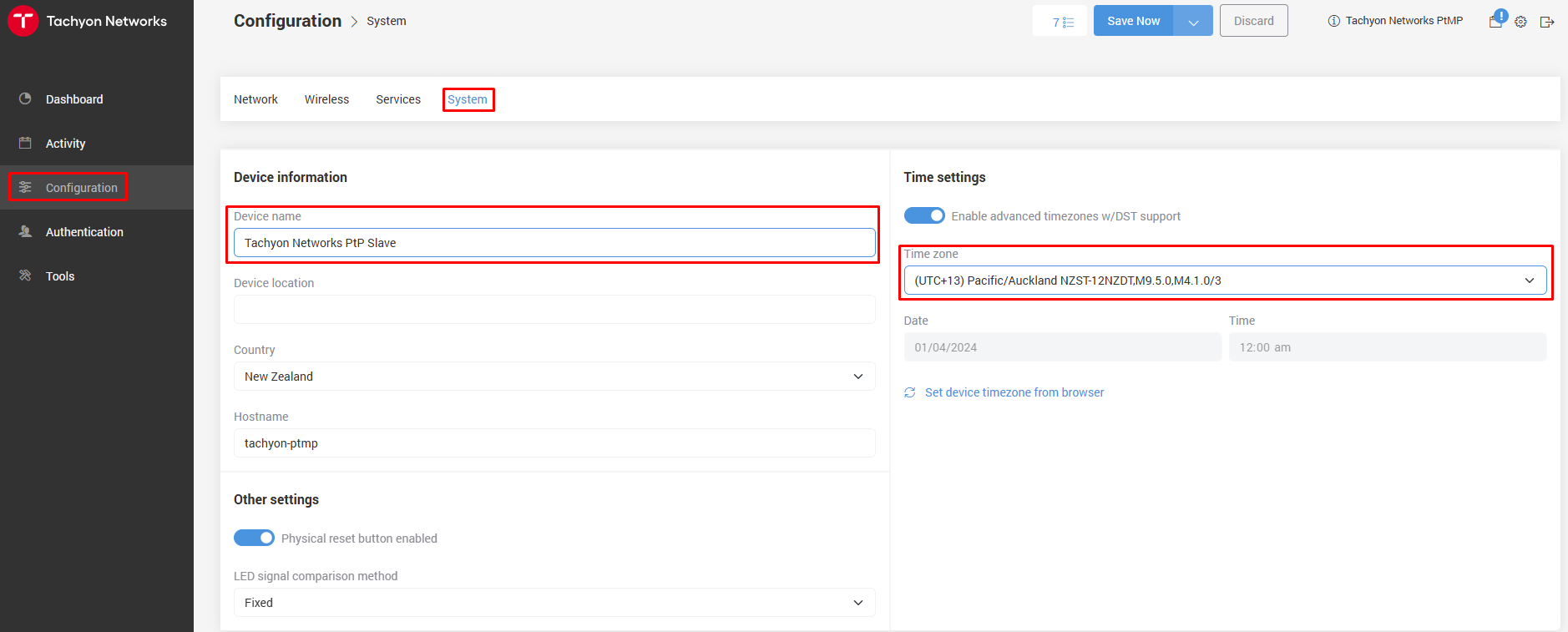
3. Next go to the System page and set a unique Device name to identify the Slave radio, as with the Master unit we recommend configuring the Time settings for accurate logging.
4. Click the Save Now button to apply all of the configuration changes that have been made.
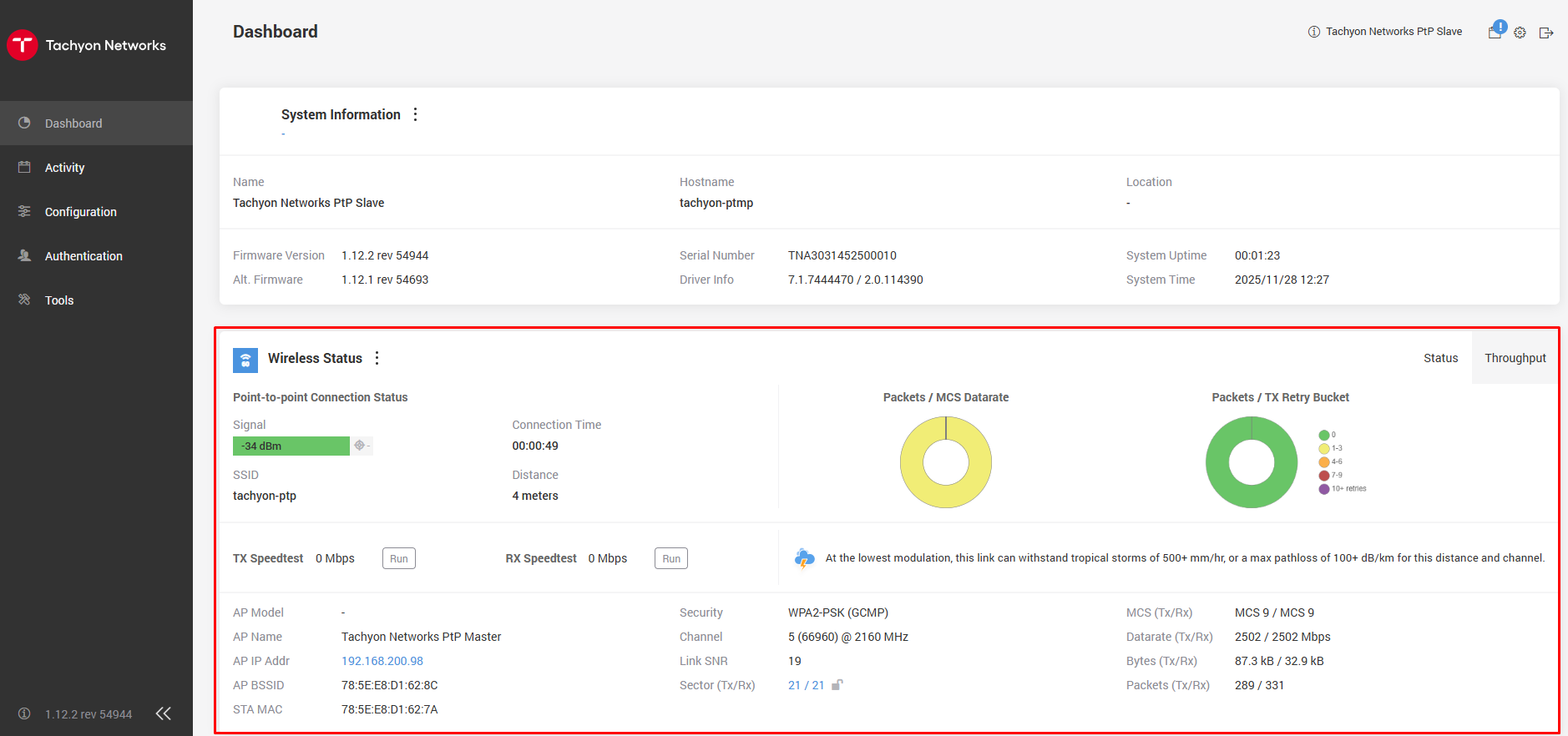
This completes the Slave and overall PTP bridge configuration, we can now verify that our link has established by going to the Dashboard and checking the Wireless Status.